
Deals
The Deals page is where you manage all your sales opportunities. Track deals through the pipeline from initial prospect to closed won or lost.
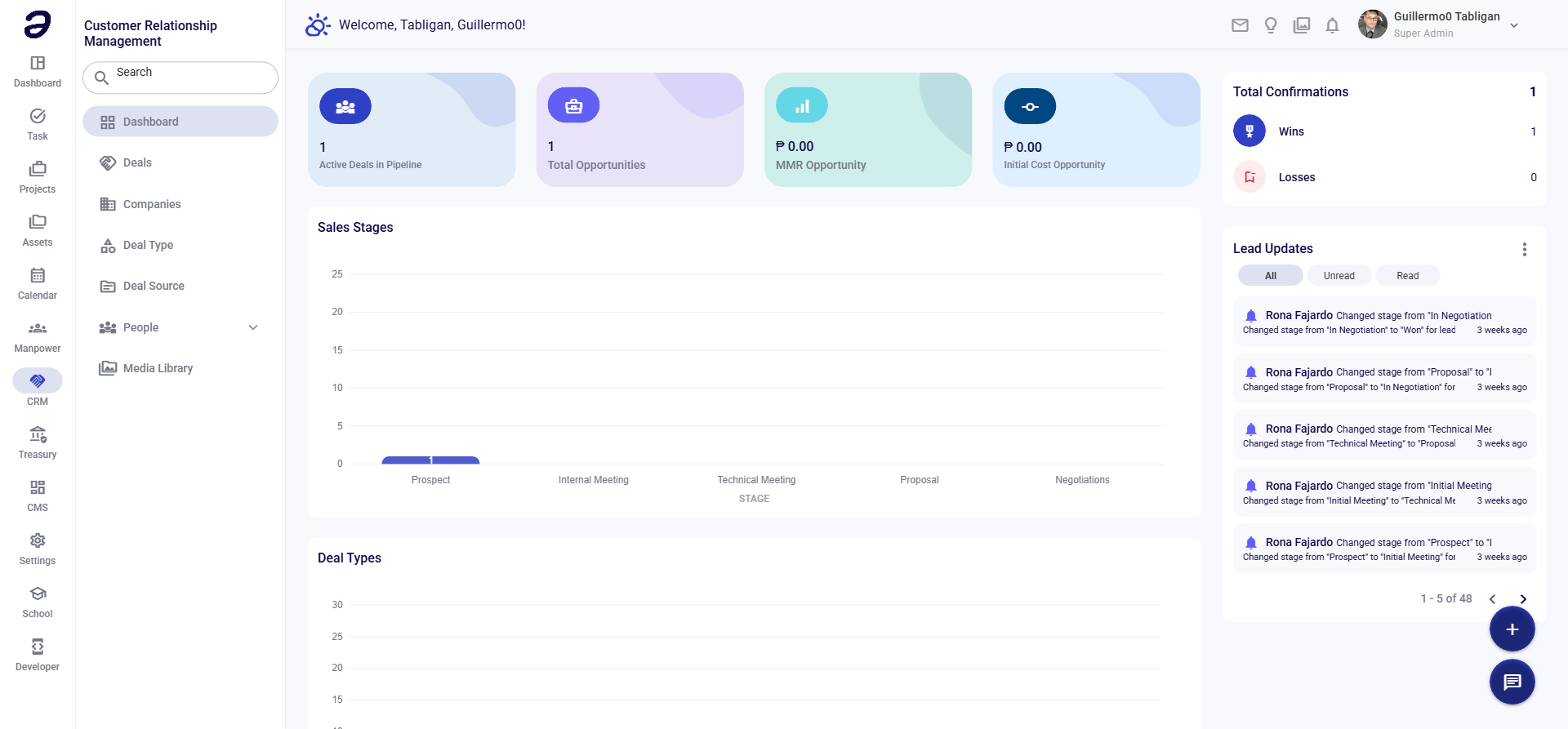
Overview
Deals represent sales opportunities with potential customers. Each deal moves through stages as you progress toward closing.
Page Layout
- Add Deal button - Create new deal
- Search - Find deals
- Filter - Filter by stage, type, owner
- View Toggle - Switch between Board and List view
- Deals Display - Show deals based on selected view
Deal Views
Board View (Kanban)
Displays deals as cards organized by stage:
- Drag and drop deals between stages
- Visual overview of entire pipeline
- Quick status updates
List View
Shows deals in a table format:
- Sort by any column
- Bulk actions
- Detailed information view
Deal Stages
Deals progress through these stages:
- Prospect - Initial contact identified
- Internal Meeting - Internal discussion about opportunity
- Technical Meeting - Requirements discussion with client
- Proposal - Proposal submitted
- Negotiations - Discussing terms and pricing
- Won - Deal closed successfully
- Loss - Deal not closed
Deal Information
Each deal contains:
| Field | Description |
|---|---|
| Deal Name | Name of the opportunity |
| Company | Associated company |
| Value | Deal amount |
| Probability | Likelihood to close (A-F) |
| Expected Close | Target close date |
| Stage | Current pipeline stage |
| Owner | Relationship owner |
| Type | Deal category |
| Source | How the lead was found |
Common Tasks
Creating a New Deal
- Click + Add Deal
- Fill in deal details:
- Deal Name - Descriptive name
- Company - Select or create company
- Value - Estimated deal amount
- Stage - Starting stage
- Owner - Assign team member
- Expected Close - Target date
- Click Save
Moving a Deal Through Stages
In Board View:
- Find the deal card
- Drag it to the new stage
- Drop to update
In List View:
- Click on the deal
- Change the Stage field
- Save changes
Updating Deal Information
- Click on the deal
- Edit any field
- Add notes or comments
- Click Save
Marking Deal as Won
- Move deal to Won stage
- Add closing notes
- Confirm the win
- Deal is archived as successful
Marking Deal as Lost
- Move deal to Loss stage
- Select loss reason
- Add notes for learning
- Deal is archived as lost
Deal Actions
- Edit - Modify deal details
- Add Note - Add comments or updates
- Add Task - Create follow-up task
- Attach File - Add documents
- Delete - Remove deal (if permitted)
Tips
- Regular Updates - Keep deal information current
- Move Promptly - Update stages as deals progress
- Document Everything - Add notes for context
- Set Realistic Dates - Use accurate close dates
- Assign Owners - Ensure every deal has an owner
Related Pages
- Dashboard - Pipeline overview
- Companies - Manage companies
- Deal Type - Deal categories
- Deal Source - Lead sources
💡 Note: Moving deals through stages triggers notifications and updates the dashboard metrics.