
My Task
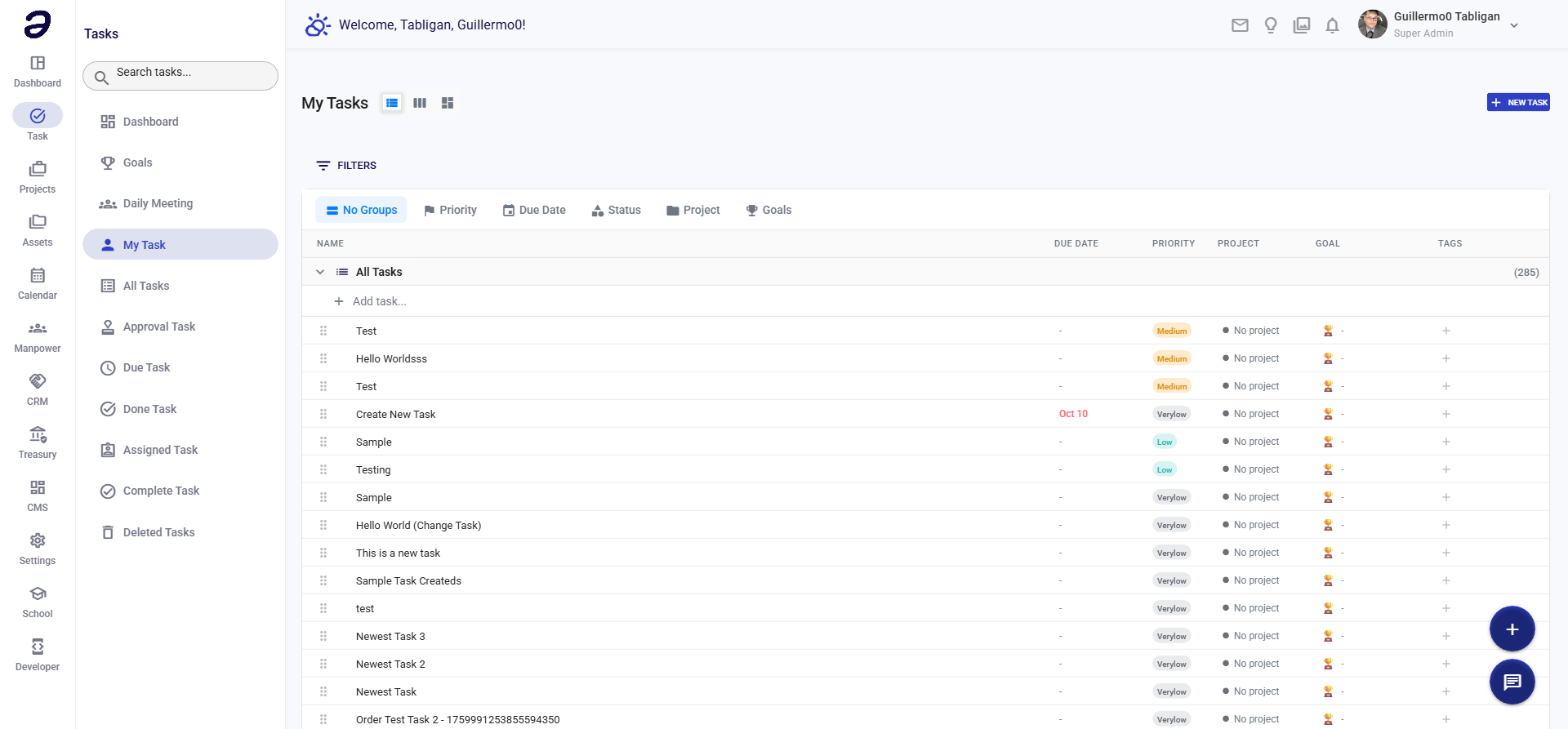
View and manage all tasks assigned to you. This page shows your personal task list with filtering and sorting options.
Overview
My Task displays all tasks that have been assigned to you. You can view task details, update status, add comments, and track your progress.
Page Features
Search Bar
- Search tasks by title, description, or keywords
- Real-time filtering as you type
Task List
- Displays all tasks assigned to you
- Shows task information:
- Task title
- Project/folder
- Status (Pending, In Progress, Done, etc.)
- Priority level (Urgent, High, Medium, Low)
- Due date
- Assignee information
- Time since creation/update
Filters and Sorting
- Filter by status, priority, project, or date
- Sort by due date, priority, or creation date
- View options: List view, Board view, Calendar view
Actions Available
Task Actions
- View Task - Click on any task to view full details
- Edit Task - Modify task information (if you have permission)
- Update Status - Change task status (Pending → In Progress → Done)
- Add Comment - Add notes or updates to the task
- Change Priority - Update task priority level
- Set Due Date - Add or modify due date
- Assign - Reassign task to another team member
- Delete - Remove task (moves to deleted tasks)
Bulk Actions
- Select multiple tasks
- Bulk status update
- Bulk priority change
- Bulk assignment
Common Tasks
Viewing Your Tasks
- Navigate to Task → My Task from the sidebar
- Your assigned tasks will be displayed
- Use search or filters to find specific tasks
Updating Task Status
- Click on a task to open details
- Click on the status dropdown
- Select new status (e.g., In Progress)
- Save changes
Adding a Comment
- Open task details
- Scroll to Comments section
- Type your comment
- Click Post Comment
Filtering Tasks
- Use the filter dropdown
- Select filter criteria (Status, Priority, Project)
- Tasks will be filtered automatically
Tips and Best Practices
- Regular Updates - Update task status as you work on them
- Use Priorities - Focus on high-priority tasks first
- Check Due Dates - Review due dates regularly to avoid overdue tasks
- Add Comments - Keep stakeholders informed with regular updates
- Organize by Project - Use project filters to focus on specific work
Related Pages
- Task Dashboard - Overview of all tasks
- Due Task - Tasks with upcoming deadlines
- Done Task - Completed tasks
- All Tasks - View all tasks in the system
💡 Note: Only tasks assigned to you are shown. To see all tasks, use the "All Tasks" page.