
Project List
View and manage all projects in a comprehensive list. Filter, search, and access project details from one central location.
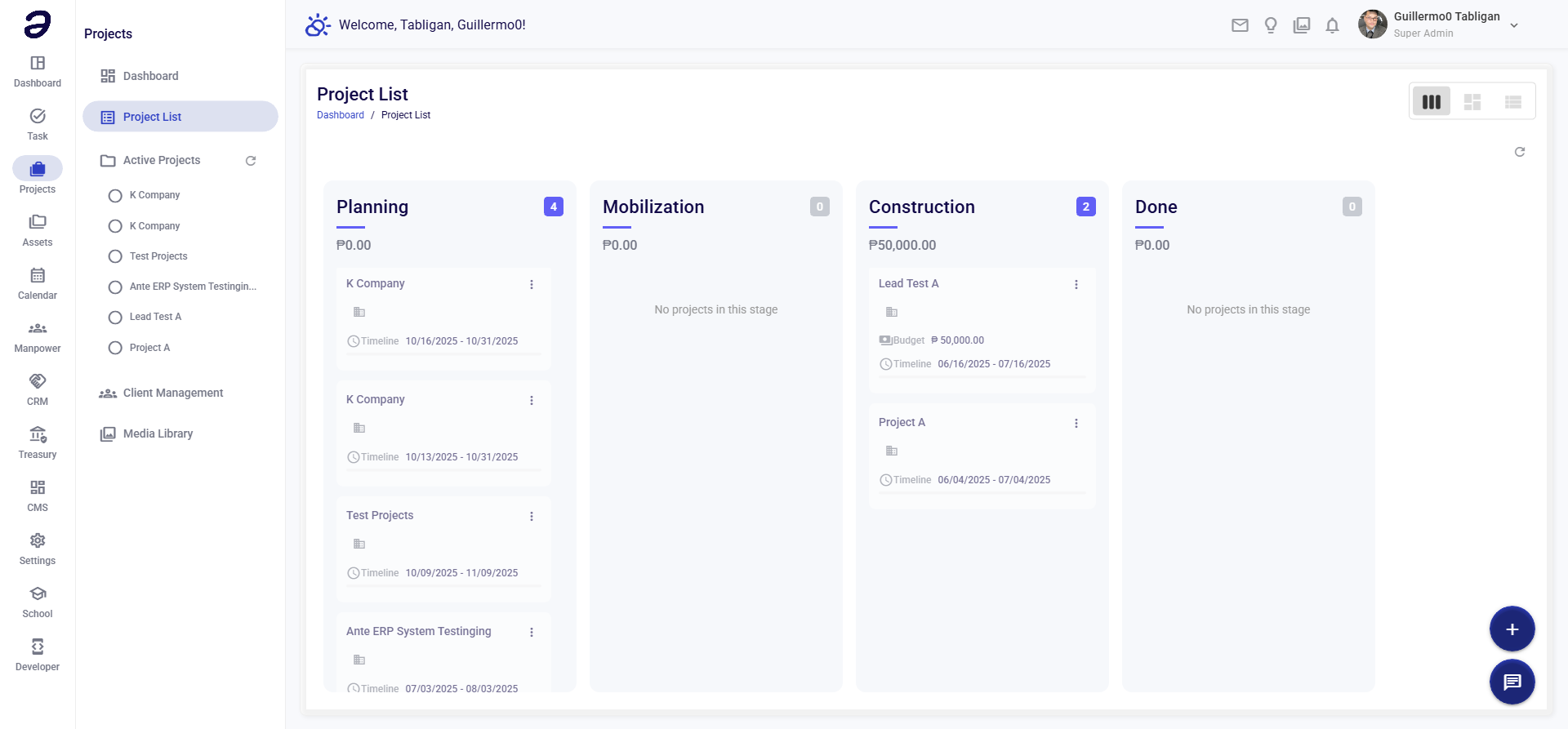
Overview
The Project List provides a complete view of all projects in the system. You can filter, search, sort, and navigate to individual project details.
Page Features
Search and Filters
- Search Bar - Search projects by name, code, or client
- Status Filter - Filter by project status
- Client Filter - Filter by client
- Date Range Filter - Filter by start or end date
- Team Filter - Filter by project manager or team members
Project Table
Displays all projects with columns:
- Project Name - Clickable link to project details
- Project Code - Unique project identifier
- Client - Associated client
- Status - Current project status
- Start Date - Project start date
- End Date - Project end date
- Project Manager - Assigned manager
- Budget - Project budget amount
- Actions - Quick action buttons
View Options
- List View - Traditional table format
- Card View - Visual card layout
- Grid View - Grid of project cards
Actions Available
Project Actions
- View Project - Open project details page
- Edit Project - Modify project information
- Duplicate Project - Create a copy of the project
- Archive Project - Move to archived projects
- Delete Project - Remove project (admin only)
Bulk Actions
- Select multiple projects
- Bulk status update
- Bulk export
- Bulk archive
Export Options
- Export to CSV
- Export to PDF
- Print project list
Common Tasks
Finding a Project
- Navigate to Projects → Project List
- Use search bar to find by name or code
- Or use filters to narrow down results
Viewing Project Details
- Find the project in the list
- Click on the project name
- View full project information
Filtering Projects
- Use filter dropdowns
- Select filter criteria
- Projects will be filtered automatically
- Clear filters to see all projects
Exporting Project List
- Apply any desired filters
- Click Export button
- Choose format (CSV or PDF)
- Download the file
Tips and Best Practices
- Use Filters - Combine filters for precise results
- Save Filters - Save frequently used filter combinations
- Regular Review - Review project list regularly
- Monitor Status - Use status filters to track project health
- Export Reports - Export lists for reporting purposes
Related Pages
- Project Dashboard - Overview statistics
- Project Details - Individual project view
- Creating a Project - How to create projects
💡 Note: Project list shows all projects you have access to. Use filters to focus on specific projects.