
Project Dashboard
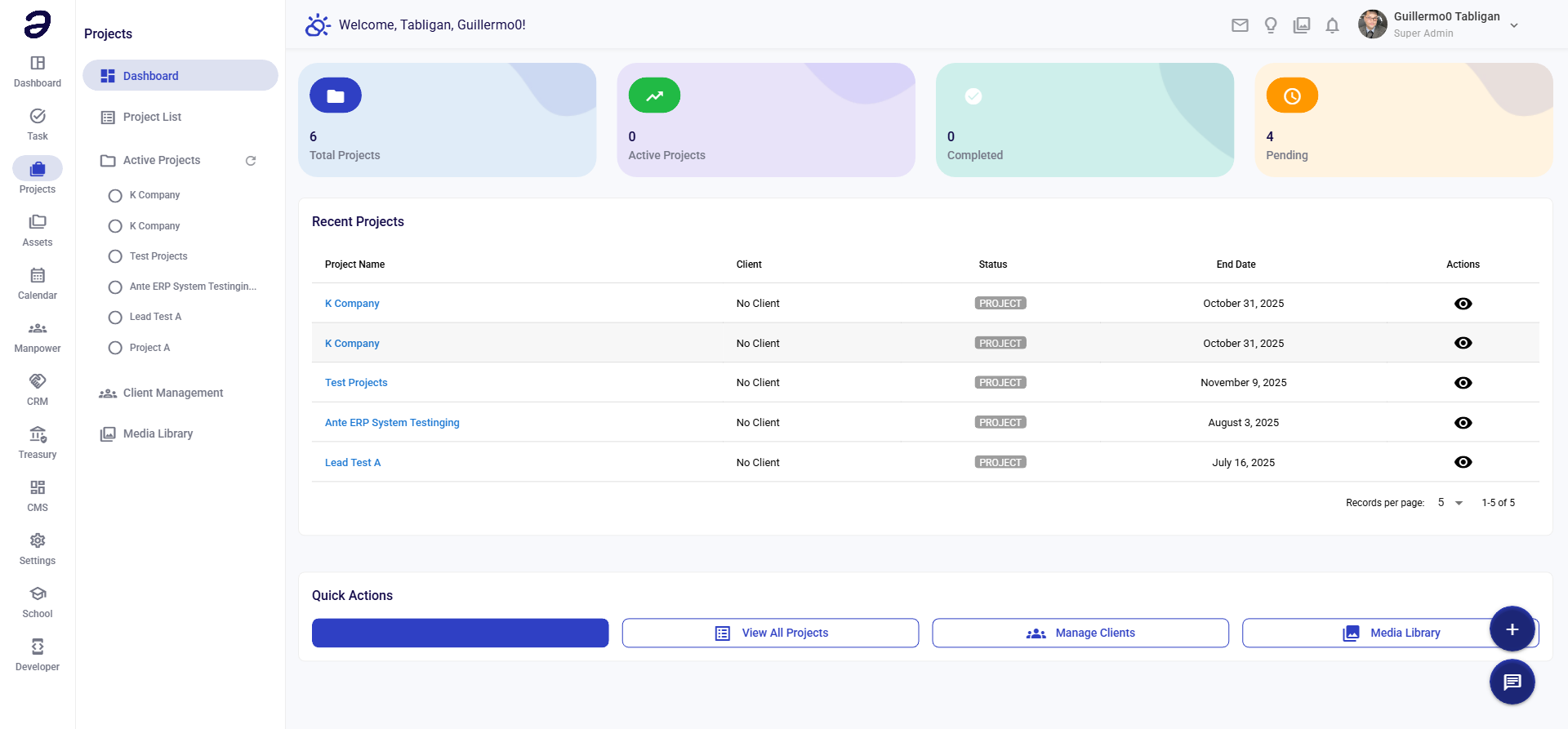
The Project Dashboard provides an overview of all your projects with key statistics, recent projects, and quick access to common actions.
Overview
The Project Dashboard is your starting point for project management. It shows project statistics, recent activity, and provides quick access to create new projects and manage existing ones.
Page Layout
Statistics Cards (Top Row)
Four clickable cards showing project metrics:
- Total Projects - Total number of projects in the system
- Active Projects - Projects currently in progress
- Completed - Projects that have been finished
- Pending - Projects waiting to start or on hold
Click on any card to filter the project list by that status.
Recent Projects Table
A table showing the most recent projects with the following columns:
- Project Name - Clickable link to project details
- Client - Associated client name (or "No Client")
- Status - Current project status (PROJECT, COMPLETED, etc.)
- End Date - Project completion or target date
- Actions - View button (eye icon) to see project details
Table Features:
- Sortable columns (click column headers)
- Pagination controls
- Records per page selector (default: 5)
Quick Actions Section
Four action buttons for common tasks:
- New Project - Create a new project
- View All Projects - Navigate to full project list
- Manage Clients - Access client management
- Media Library - Open project media library
Actions Available
Navigation Actions
- Click on Project Name to view project details
- Click View button (eye icon) to see project information
- Click on statistic cards to filter projects
- Use Quick Actions buttons for common tasks
Sorting and Filtering
- Click column headers to sort
- Use pagination to navigate through projects
- Adjust records per page
Common Tasks
Viewing a Project
- Find the project in the Recent Projects table
- Click on the project name or the View button
- You'll be taken to the project details page
Creating a New Project
- Click New Project button in Quick Actions
- Or use the floating action button and select New Project
- Fill in project details (see Creating a Project)
- Save the project
Viewing All Projects
- Click View All Projects in Quick Actions
- Or navigate to Projects → Project List
- See complete list of all projects
Managing Clients
- Click Manage Clients in Quick Actions
- Add, edit, or view client information
- Link clients to projects
Tips and Best Practices
- Regular Review - Check dashboard daily for project updates
- Monitor Statistics - Watch active vs. completed project ratios
- Use Quick Actions - Fast access to common tasks
- Check Recent Projects - Stay updated on latest project activity
Related Pages
- Project List - Complete project listing
- Project Details - Individual project view
- Creating a Project - How to create projects
- Client Management - Manage clients
💡 Note: The dashboard shows recent projects. Use "View All Projects" to see the complete list.