
Done Task
View all completed tasks. Review your accomplishments and track completed work.
Overview
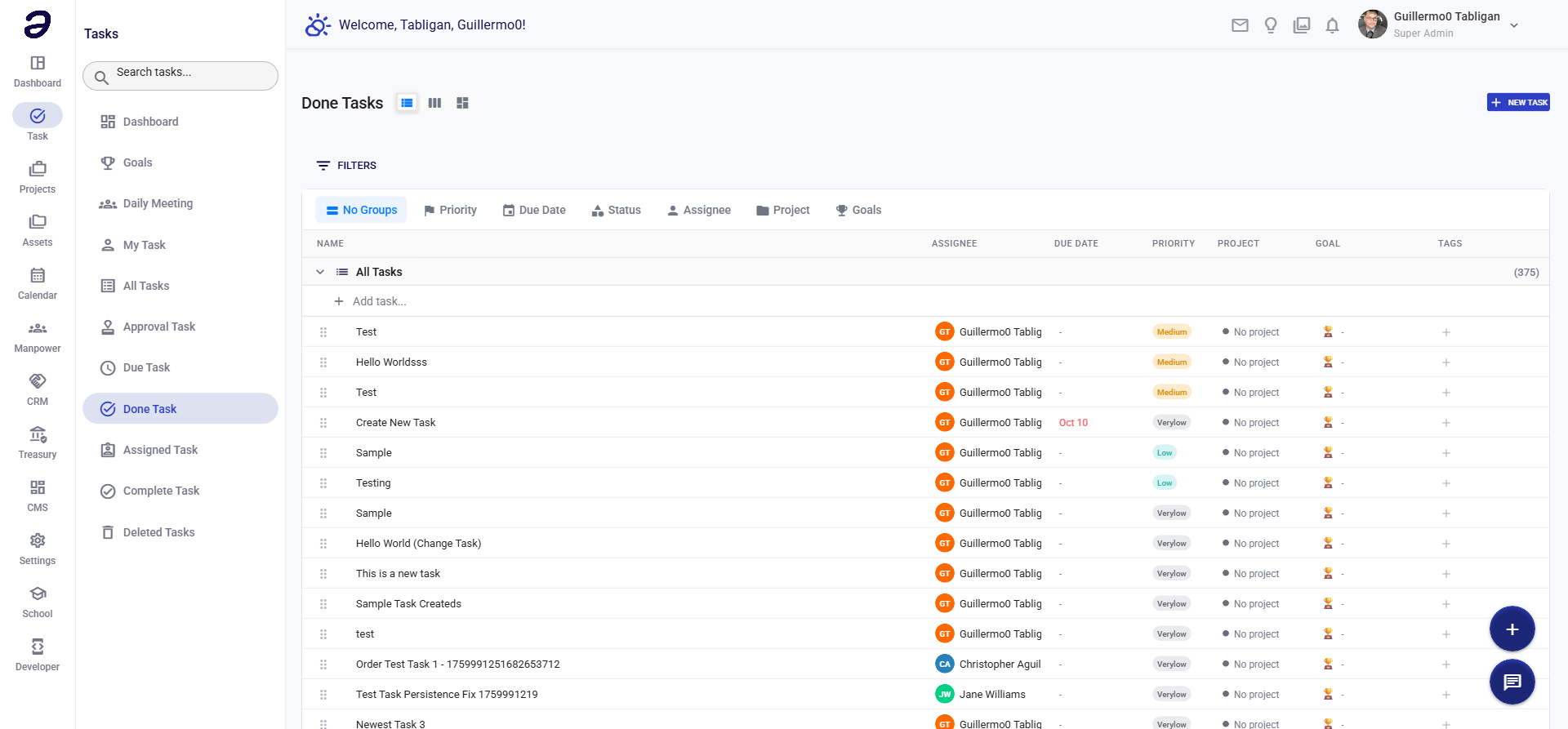
Done Task shows all tasks that have been marked as completed. This helps you review your work, track accomplishments, and maintain a record of completed activities.
Page Features
Completed Tasks List
- All tasks with "Done" status
- Shows task information:
- Task title
- Project/folder
- Completion date
- Completed by (assignee)
- Original due date
- Priority level
- Time taken to complete
Filters and Search
- Filter by completion date range
- Filter by project
- Filter by priority
- Search completed tasks
- Sort by completion date (newest/oldest first)
Actions Available
Task Actions
- View Task - See full task details and history
- Reopen Task - Mark as incomplete if needed
- View Comments - Review discussion and updates
- Export - Export completed tasks list
Review Options
- View completion timeline
- Review task history
- See related tasks
- View attachments
Common Tasks
Viewing Completed Tasks
- Navigate to Task → Done Task
- View list of completed tasks
- Use filters to find specific completed tasks
Reviewing Task History
- Click on a completed task
- View task details
- Review completion timeline
- See all status changes and comments
Reopening a Task
- Open the completed task
- Click Reopen or Mark as Incomplete
- Task status changes back to previous status
- Task reappears in active task lists
Tips and Best Practices
- Review Regularly - Check completed tasks to track progress
- Learn from Completion - Review how long tasks took vs. estimates
- Celebrate Wins - Acknowledge completed work
- Use for Reporting - Completed tasks help track productivity
- Archive Old Tasks - Filter by date to focus on recent completions
Related Pages
- My Task - View your active tasks
- Task Dashboard - See completion statistics
- All Tasks - View all tasks including completed
💡 Note: Completed tasks remain visible for historical reference. You can reopen them if work needs to continue.